The master prompt playbook. These exact techniques unlock carousels, cinematic animations, scroll effects, galleries, PDF downloads, and precise layout control — all through the AI chat.
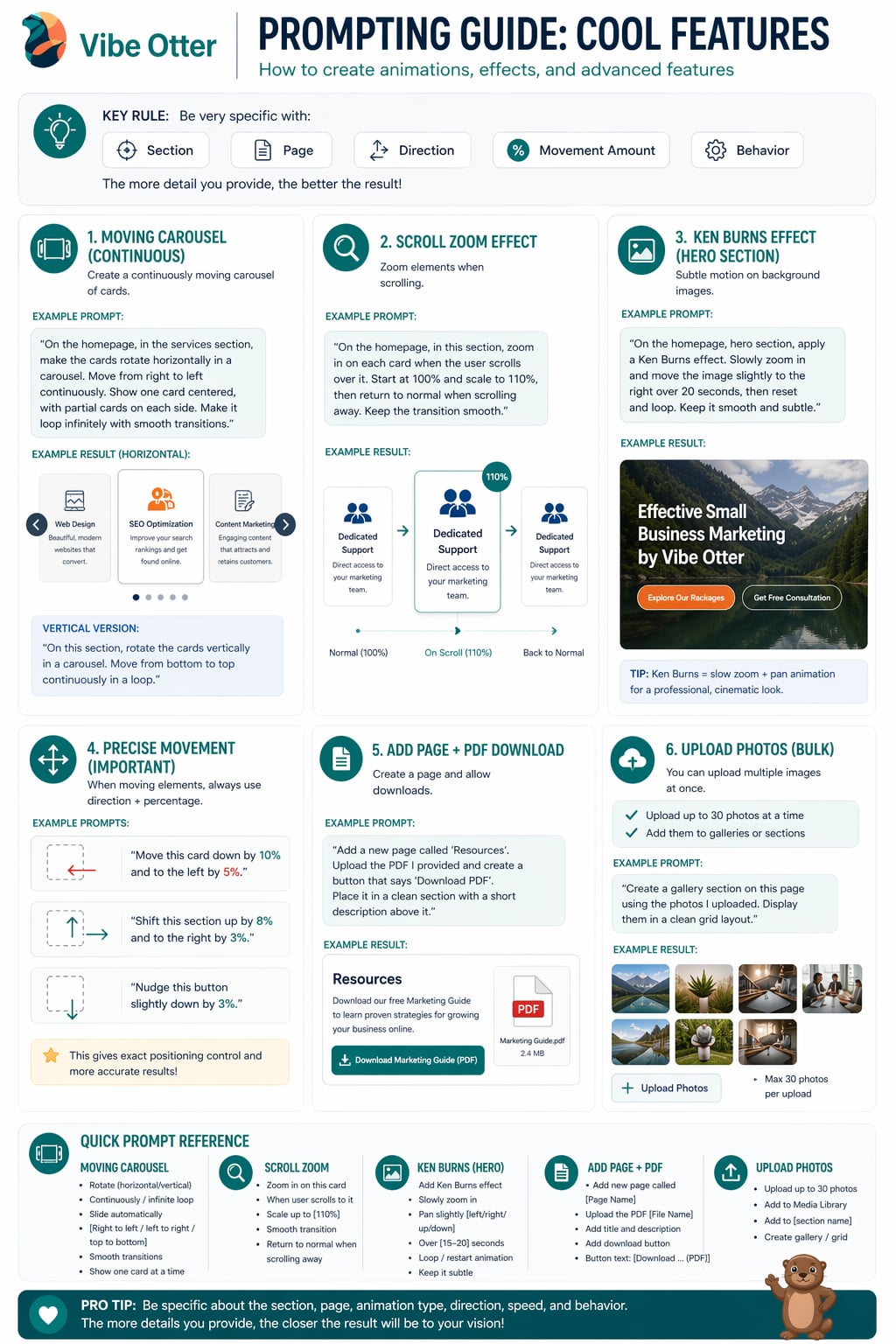
These principles apply to every feature below. The more precisely you follow them, the better your results.
Always name the exact section — hero, services, features, footer.
Describe where the element sits on the page — top, middle, below the heading.
Always specify: left, right, up, down — never leave it to guesswork.
Use percentages for positioning: "shift down 10%, left 5%."
State whether it loops, resets, triggers on hover, or triggers on scroll.
A horizontally scrolling carousel that loops forever — no clicks needed. Perfect for services, testimonials, logos, or feature cards.
Want a vertical version? Ask for cards to move from bottom to top continuously in a loop.
Cards subtly enlarge as the user scrolls to them, creating a dynamic, modern feel that draws attention to your content.
Works great in features, services, or portfolio sections. You can also apply it to individual images or hero elements.
A slow, cinematic zoom and pan on your hero background image. Used by top brands to make static images feel alive and dramatic.
You can change the pan direction (left, right, up, down) and the duration. Try "pan left over 15 seconds" for a different feel.
Stop saying "move it a little." Use directional percentages to get pixel-perfect layout control every time.
The more specific you are, the less back-and-forth you'll need. One precise prompt beats five vague ones.
Add a professional Resources page with downloadable files. Great for menus, brochures, price lists, guides, or any document your visitors need.
Upload your PDF directly into the chat first, then use the prompt below. The AI will link the button directly to your file.
Upload up to 30 images at once and get a clean, organized gallery grid. Perfect for portfolios, event photos, product shots, or before-and-afters.
Ask for a masonry layout (Pinterest-style) or a carousel gallery if you want something more dynamic than a grid.
Apply these to every feature you build. They're the difference between "pretty good" and "wow."
Always ask for smooth transitions. Add "use smooth CSS transitions" to any animation prompt to ensure nothing looks choppy or abrupt.
The best animations are the ones users feel, not see. Subtle zoom, gentle pan, soft fade — these feel professional. Big bounces feel amateur.
For any looping animation, say "ensure the loop is seamless with no visible jump or reset." This prevents the jarring snap-back effect.
Ask for "modern UI design" when building new sections. This signals the AI to use current design patterns — clean spacing, subtle shadows, and readable typography.
These techniques unlock even more of what the AI can do — from uploading your own images to building entire multi-page sites in one go.
Drag and drop your own photos, logos, or graphics directly into the chat. Say "use this image as the hero background" and the AI will place it perfectly on your site.
Paste or upload a Word doc, PDF, or text file and tell the AI to use it. "Here's my resume — build a portfolio page using this content." The AI reads and applies it automatically.
Tell the AI to match the style of a site you love. "Make it look like Stripe.com — clean, minimal, with bold headings and a dark footer." The AI understands design references.
Ask for a full site in one prompt. "Build me a 4-page site with a Home, About, Services, and Contact page for a landscaping business." The AI creates all pages and links them together.
Describe your brand upfront: "Use a dark navy and gold color scheme with a modern sans-serif font throughout the whole site." The AI applies it consistently across every section.
Not sure what you want? Ask the AI to try a few options. "Give me three different hero section styles — one minimal, one bold, one with a background image." Then pick your favorite.
Request motion to bring your site to life. "Add a fade-in animation to the hero text" or "make the cards slide up when the page scrolls to them." The AI handles all the code.
Ask the AI to optimize for mobile at any time. "Make sure this looks great on phones — stack the columns, increase font size, and make buttons easier to tap."
Tell the AI to optimize for search engines. "Add proper SEO titles, meta descriptions, and heading structure for a plumbing business in Dallas, TX." Done in seconds.
Small tweaks to how you prompt can make a big difference in what you get back.
Before diving into details, describe the overall goal first. "I want a professional site for a law firm" gives the AI context that shapes every decision it makes after that.
When making a small change, add this phrase to protect the rest of your site. "Change the hero button color to green — keep everything else the same." Prevents unintended edits.
The AI builds better when it has real text to work with. Copy and paste your actual business name, tagline, service list, or bio directly into the chat before asking it to build.
Open your dashboard and start experimenting. The more specific your prompts, the better your site becomes.
Open Dashboard › Back to Prompting GuideAsk me anything