Vibe Otter can build powerful web app features — bookings, user logins, admin dashboards, and more. This guide shows you exactly what to say to make it happen.
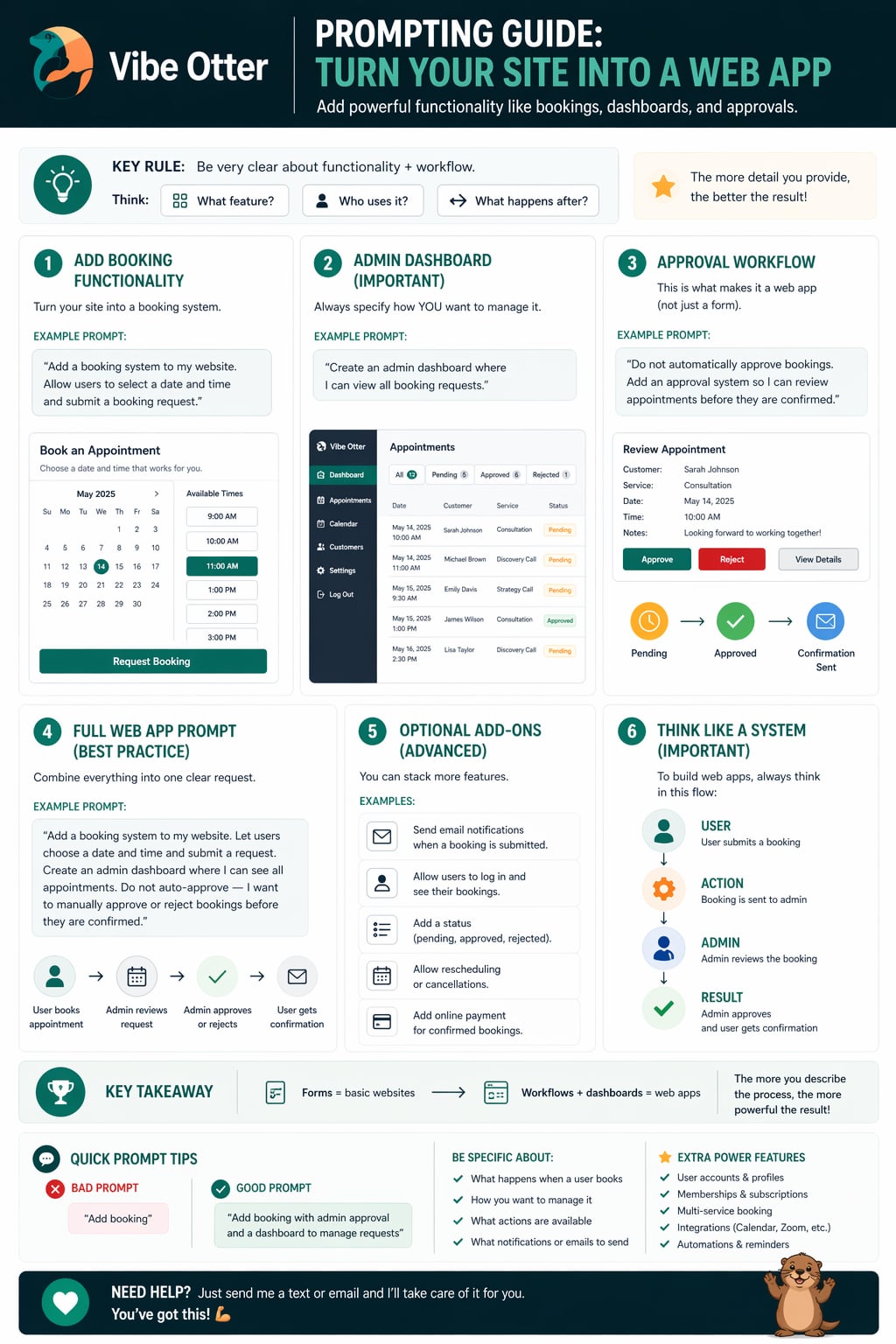
Copy these prompts directly into your AI chat — or use them as a starting point and customize for your business.
"Add a booking form so clients can schedule a 30-minute consultation. Send me an email when someone books and show all bookings in an admin dashboard."
"Add user login and registration to my site. Create a members-only page that only logged-in users can see. Make the first registered user the admin."
"Add a form where visitors can submit a job application with their name, email, resume, and a short bio. Store all submissions so I can review them from my admin panel."
"Create a private admin page that only I can access. Show me all form submissions, booking requests, and user sign-ups in one place with the ability to approve or reject them."
"Add a contact form with fields for name, email, phone, and message. Send submissions to my email address and display a thank-you message after they submit."
"Add a section where customers can leave a star rating and written review. Show approved reviews publicly on the homepage and let me approve or hide them from the admin panel."
"Connect my Shopify store to this site. Add a product catalog page, individual product pages, a shopping cart, and a checkout button that goes to my Shopify checkout."
"Make the Resources page only accessible to logged-in users. Redirect anyone who isn't logged in to the login page. Add a sign-up link so new visitors can create an account."
"Build a directory where users can submit their business name, category, description, and contact info. Show all approved listings publicly and let me manage them from an admin view."
App features are more complex than design changes — here's how to describe them clearly so the AI builds exactly what you need.
Explain what a visitor will do step by step. "A visitor fills out the form → they see a confirmation message → I get an email with their details → I can view it in the admin panel."
Tell the AI who can access what. "Only logged-in users can see the members page. Only the admin can approve bookings. All visitors can see the public reviews."
If you want to be notified, say so explicitly. "Send me an email at owner@mybusiness.com whenever someone submits a booking request." The AI will set it up automatically.
List exactly what information you want to collect. "The form should have: First Name, Last Name, Email, Phone, Preferred Date, and a Notes field." Specifics = better results.
See how adding detail transforms a vague request into a fully-built feature.
"Add a booking thing to my site."
"Add a booking form for hair salon appointments. Fields: name, email, phone, service type (haircut, color, blowout), and preferred date/time. Email me at salon@email.com when someone books."
"Add user accounts."
"Add user registration and login. After logging in, users should see a private 'My Orders' page showing their past purchases. Make the first registered user the admin with access to all orders."
Open your site in the AI chat, pick a feature from this guide, and paste the example prompt. You'll be amazed at what gets built.
Open Dashboard › Web Apps Overview ›Ask me anything